given below Sr.NoMethod & Description1 execSQL(String sql, Object[] bindArgs) This method not only insert data , but also used to update...
given below
Sr.NoMethod & Description1
execSQL(String sql, Object[] bindArgs)
This method not only insert data , but also used to update or modify already existing data in database using bind arguments
We can retrieve anything from database using an object of the Cursor class. We will call a method of this class called rawQuery and it will return a resultset with the cursor pointing to the table. We can move the cursor forward and retrieve the data.
Cursor resultSet = mydatbase.rawQuery("Select * from TutorialsPoint",null); resultSet.moveToFirst(); String username = resultSet.getString(0); String password = resultSet.getString(1);
There are other functions available in the Cursor class that allows us to effectively retrieve the data. That includes
Sr.NoMethod & Description1
getColumnCount()
This method return the total number of columns of the table.
2
getColumnIndex(String columnName)
This method returns the index number of a column by specifying the name of the column
3
getColumnName(int columnIndex)
This method returns the name of the column by specifying the index of the column
4
getColumnNames()
This method returns the array of all the column names of the table.
5
getCount()
This method returns the total number of rows in the cursor
6
getPosition()
This method returns the current position of the cursor in the table
7
isClosed()
This method returns true if the cursor is closed and return false otherwise
For managing all the operations related to the database , an helper class has been given and is called SQLiteOpenHelper. It automatically manages the creation and update of the database. Its syntax is given below
public class DBHelper extends SQLiteOpenHelper { public DBHelper(){ super(context,DATABASE_NAME,null,1); } public void onCreate(SQLiteDatabase db) {} public void onUpgrade(SQLiteDatabase database, int oldVersion, int newVersion) {} }
Here is an example demonstrating the use of SQLite Database. It creates a basic contacts applications that allows insertion, deletion and modification of contacts.
To experiment with this example, you need to run this on an actual device on which camera is supported.
StepsDescription1You will use Android studio to create an Android application under a package com.example.sairamkrishna.myapplication.2Modify src/MainActivity.java file to get references of all the XML components and populate the contacts on listView.3Create new src/DBHelper.java that will manage the database work4Create a new Activity as DisplayContact.java that will display the contact on the screen5Modify the res/layout/activity_main to add respective XML components6Modify the res/layout/activity_display_contact.xml to add respective XML components7Modify the res/values/string.xml to add necessary string components8Modify the res/menu/display_contact.xml to add necessary menu components9Create a new menu as res/menu/mainmenu.xml to add the insert contact option10Run the application and choose a running android device and install the application on it and verify the results.
Following is the content of the modified MainActivity.java.
package com.example.sairamkrishna.myapplication; import android.content.Context; import android.content.Intent; import android.support.v7.app.ActionBarActivity; import android.os.Bundle; import android.view.KeyEvent; import android.view.Menu; import android.view.MenuItem; import android.view.View; import android.widget.AdapterView; import android.widget.ArrayAdapter; import android.widget.AdapterView.OnItemClickListener; import android.widget.ListView; import java.util.ArrayList; import java.util.List; public class MainActivity extends ActionBarActivity { public final static String EXTRA_MESSAGE = "MESSAGE"; private ListView obj; DBHelper mydb; @Override protected void onCreate(Bundle savedInstanceState) { super.onCreate(savedInstanceState); setContentView(R.layout.activity_main); mydb = new DBHelper(this); ArrayList array_list = mydb.getAllCotacts(); ArrayAdapter arrayAdapter=new ArrayAdapter(this,android.R.layout.simple_list_item_1, array_list); obj = (ListView)findViewById(R.id.listView1); obj.setAdapter(arrayAdapter); obj.setOnItemClickListener(new OnItemClickListener(){ @Override public void onItemClick(AdapterView<?> arg0, View arg1, int arg2,long arg3) { // TODO Auto-generated method stub int id_To_Search = arg2 + 1; Bundle dataBundle = new Bundle(); dataBundle.putInt("id", id_To_Search); Intent intent = new Intent(getApplicationContext(),DisplayContact.class); intent.putExtras(dataBundle); startActivity(intent); } }); } @Override public boolean onCreateOptionsMenu(Menu menu) { // Inflate the menu; this adds items to the action bar if it is present. getMenuInflater().inflate(R.menu.menu_main, menu); return true; } @Override public boolean onOptionsItemSelected(MenuItem item){ super.onOptionsItemSelected(item); switch(item.getItemId()) { case R.id.item1:Bundle dataBundle = new Bundle(); dataBundle.putInt("id", 0); Intent intent = new Intent(getApplicationContext(),DisplayContact.class); intent.putExtras(dataBundle); startActivity(intent); return true; default: return super.onOptionsItemSelected(item); } } public boolean onKeyDown(int keycode, KeyEvent event) { if (keycode == KeyEvent.KEYCODE_BACK) { moveTaskToBack(true); } return super.onKeyDown(keycode, event); } }
Following is the modified content of display contact activity DisplayContact.java
package com.example.sairamkrishna.myapplication; import android.os.Bundle; import android.app.Activity; import android.app.AlertDialog; import android.content.DialogInterface; import android.content.Intent; import android.database.Cursor; import android.view.Menu; import android.view.MenuItem; import android.view.View; import android.widget.Button; import android.widget.TextView; import android.widget.Toast; public class DisplayContact extends Activity { int from_Where_I_Am_Coming = 0; private DBHelper mydb ; TextView name ; TextView phone; TextView email; TextView street; TextView place; int id_To_Update = 0; @Override protected void onCreate(Bundle savedInstanceState) { super.onCreate(savedInstanceState); setContentView(R.layout.activity_display_contact); name = (TextView) findViewById(R.id.editTextName); phone = (TextView) findViewById(R.id.editTextPhone); email = (TextView) findViewById(R.id.editTextStreet); street = (TextView) findViewById(R.id.editTextEmail); place = (TextView) findViewById(R.id.editTextCity); mydb = new DBHelper(this); Bundle extras = getIntent().getExtras(); if(extras !=null) { int Value = extras.getInt("id"); if(Value>0){ //means this is the view part not the add contact part. Cursor rs = mydb.getData(Value); id_To_Update = Value; rs.moveToFirst(); String nam = rs.getString(rs.getColumnIndex(DBHelper.CONTACTS_COLUMN_NAME)); String phon = rs.getString(rs.getColumnIndex(DBHelper.CONTACTS_COLUMN_PHONE)); String emai = rs.getString(rs.getColumnIndex(DBHelper.CONTACTS_COLUMN_EMAIL)); String stree = rs.getString(rs.getColumnIndex(DBHelper.CONTACTS_COLUMN_STREET)); String plac = rs.getString(rs.getColumnIndex(DBHelper.CONTACTS_COLUMN_CITY)); if (!rs.isClosed()) { rs.close(); } Button b = (Button)findViewById(R.id.button1); b.setVisibility(View.INVISIBLE); name.setText((CharSequence)nam); name.setFocusable(false); name.setClickable(false); phone.setText((CharSequence)phon); phone.setFocusable(false); phone.setClickable(false); email.setText((CharSequence)emai); email.setFocusable(false); email.setClickable(false); street.setText((CharSequence)stree); street.setFocusable(false); street.setClickable(false); place.setText((CharSequence)plac); place.setFocusable(false); place.setClickable(false); } } } @Override public boolean onCreateOptionsMenu(Menu menu) { // Inflate the menu; this adds items to the action bar if it is present. Bundle extras = getIntent().getExtras(); if(extras !=null) { int Value = extras.getInt("id"); if(Value>0){ getMenuInflater().inflate(R.menu.display_contact, menu); } else{ getMenuInflater().inflate(R.menu.menu_main menu); } } return true; } public boolean onOptionsItemSelected(MenuItem item) { super.onOptionsItemSelected(item); switch(item.getItemId()) { case R.id.Edit_Contact: Button b = (Button)findViewById(R.id.button1); b.setVisibility(View.VISIBLE); name.setEnabled(true); name.setFocusableInTouchMode(true); name.setClickable(true); phone.setEnabled(true); phone.setFocusableInTouchMode(true); phone.setClickable(true); email.setEnabled(true); email.setFocusableInTouchMode(true); email.setClickable(true); street.setEnabled(true); street.setFocusableInTouchMode(true); street.setClickable(true); place.setEnabled(true); place.setFocusableInTouchMode(true); place.setClickable(true); return true; case R.id.Delete_Contact: AlertDialog.Builder builder = new AlertDialog.Builder(this); builder.setMessage(R.string.deleteContact) .setPositiveButton(R.string.yes, new DialogInterface.OnClickListener() { public void onClick(DialogInterface dialog, int id) { mydb.deleteContact(id_To_Update); Toast.makeText(getApplicationContext(), "Deleted Successfully", Toast.LENGTH_SHORT).show(); Intent intent = new Intent(getApplicationContext(),MainActivity.class); startActivity(intent); } }) .setNegativeButton(R.string.no, new DialogInterface.OnClickListener() { public void onClick(DialogInterface dialog, int id) { // User cancelled the dialog } }); AlertDialog d = builder.create(); d.setTitle("Are you sure"); d.show(); return true; default: return super.onOptionsItemSelected(item); } } public void run(View view) { Bundle extras = getIntent().getExtras(); if(extras !=null) { int Value = extras.getInt("id"); if(Value>0){ if(mydb.updateContact(id_To_Update,name.getText().toString(), phone.getText().toString(), email.getText().toString(), street.getText().toString(), place.getText().toString())){ Toast.makeText(getApplicationContext(), "Updated", Toast.LENGTH_SHORT).show(); Intent intent = new Intent(getApplicationContext(),MainActivity.class); startActivity(intent); } else{ Toast.makeText(getApplicationContext(), "not Updated", Toast.LENGTH_SHORT).show(); } } else{ if(mydb.insertContact(name.getText().toString(), phone.getText().toString(), email.getText().toString(), street.getText().toString(), place.getText().toString())){ Toast.makeText(getApplicationContext(), "done", Toast.LENGTH_SHORT).show(); } else{ Toast.makeText(getApplicationContext(), "not done", Toast.LENGTH_SHORT).show(); } Intent intent = new Intent(getApplicationContext(),MainActivity.class); startActivity(intent); } } } }
Following is the content of Database class DBHelper.java
package com.example.sairamkrishna.myapplication; import java.util.ArrayList; import java.util.HashMap; import java.util.Hashtable; import android.content.ContentValues; import android.content.Context; import android.database.Cursor; import android.database.DatabaseUtils; import android.database.sqlite.SQLiteOpenHelper; import android.database.sqlite.SQLiteDatabase; public class DBHelper extends SQLiteOpenHelper { public static final String DATABASE_NAME = "MyDBName.db"; public static final String CONTACTS_TABLE_NAME = "contacts"; public static final String CONTACTS_COLUMN_ID = "id"; public static final String CONTACTS_COLUMN_NAME = "name"; public static final String CONTACTS_COLUMN_EMAIL = "email"; public static final String CONTACTS_COLUMN_STREET = "street"; public static final String CONTACTS_COLUMN_CITY = "place"; public static final String CONTACTS_COLUMN_PHONE = "phone"; private HashMap hp; public DBHelper(Context context) { super(context, DATABASE_NAME , null, 1); } @Override public void onCreate(SQLiteDatabase db) { // TODO Auto-generated method stub db.execSQL( "create table contacts " + "(id integer primary key, name text,phone text,email text, street text,place text)" ); } @Override public void onUpgrade(SQLiteDatabase db, int oldVersion, int newVersion) { // TODO Auto-generated method stub db.execSQL("DROP TABLE IF EXISTS contacts"); onCreate(db); } public boolean insertContact (String name, String phone, String email, String street,String place) { SQLiteDatabase db = this.getWritableDatabase(); ContentValues contentValues = new ContentValues(); contentValues.put("name", name); contentValues.put("phone", phone); contentValues.put("email", email); contentValues.put("street", street); contentValues.put("place", place); db.insert("contacts", null, contentValues); return true; } public Cursor getData(int id) { SQLiteDatabase db = this.getReadableDatabase(); Cursor res = db.rawQuery( "select * from contacts where id="+id+"", null ); return res; } public int numberOfRows(){ SQLiteDatabase db = this.getReadableDatabase(); int numRows = (int) DatabaseUtils.queryNumEntries(db, CONTACTS_TABLE_NAME); return numRows; } public boolean updateContact (Integer id, String name, String phone, String email, String street,String place) { SQLiteDatabase db = this.getWritableDatabase(); ContentValues contentValues = new ContentValues(); contentValues.put("name", name); contentValues.put("phone", phone); contentValues.put("email", email); contentValues.put("street", street); contentValues.put("place", place); db.update("contacts", contentValues, "id = ? ", new String[] { Integer.toString(id) } ); return true; } public Integer deleteContact (Integer id) { SQLiteDatabase db = this.getWritableDatabase(); return db.delete("contacts", "id = ? ", new String[] { Integer.toString(id) }); } public ArrayList<String> getAllCotacts() { ArrayList<String> array_list = new ArrayList<String>(); //hp = new HashMap(); SQLiteDatabase db = this.getReadableDatabase(); Cursor res = db.rawQuery( "select * from contacts", null ); res.moveToFirst(); while(res.isAfterLast() == false){ array_list.add(res.getString(res.getColumnIndex(CONTACTS_COLUMN_NAME))); res.moveToNext(); } return array_list; } }
Following is the content of the res/layout/activity_main.xml
<?xml version="1.0" encoding="utf-8"?> <RelativeLayout xmlns:android="http://schemas.android.com/apk/res/android" xmlns:tools="http://schemas.android.com/tools" android:layout_width="match_parent" android:layout_height="match_parent" android:paddingLeft="@dimen/activity_horizontal_margin" android:paddingRight="@dimen/activity_horizontal_margin" android:paddingTop="@dimen/activity_vertical_margin" android:paddingBottom="@dimen/activity_vertical_margin" tools:context=".MainActivity"> <TextView android:layout_width="wrap_content" android:layout_height="wrap_content" android:id="@+id/textView" android:layout_alignParentTop="true" android:layout_centerHorizontal="true" android:textSize="30dp" android:text="Data Base" /> <TextView android:layout_width="wrap_content" android:layout_height="wrap_content" android:text="Tutorials Point" android:id="@+id/textView2" android:layout_below="@+id/textView" android:layout_centerHorizontal="true" android:textSize="35dp" android:textColor="#ff16ff01" /> <ImageView android:layout_width="wrap_content" android:layout_height="wrap_content" android:id="@+id/imageView" android:layout_below="@+id/textView2" android:layout_centerHorizontal="true" android:src="@drawable/logo"/> <ScrollView android:layout_width="wrap_content" android:layout_height="wrap_content" android:id="@+id/scrollView" android:layout_below="@+id/imageView" android:layout_alignParentLeft="true" android:layout_alignParentStart="true" android:layout_alignParentBottom="true" android:layout_alignParentRight="true" android:layout_alignParentEnd="true"> <ListView android:id="@+id/listView1" android:layout_width="match_parent" android:layout_height="wrap_content" android:layout_centerHorizontal="true" android:layout_centerVertical="true" > </ListView> </ScrollView> </RelativeLayout>
Following is the content of the res/layout/activity_display_contact.xml
<?xml version="1.0" encoding="utf-8"?> <ScrollView xmlns:android="http://schemas.android.com/apk/res/android" xmlns:tools="http://schemas.android.com/tools" android:id="@+id/scrollView1" android:layout_width="match_parent" android:layout_height="wrap_content" tools:context=".DisplayContact" > <RelativeLayout android:layout_width="match_parent" android:layout_height="370dp" android:paddingBottom="@dimen/activity_vertical_margin" android:paddingLeft="@dimen/activity_horizontal_margin" android:paddingRight="@dimen/activity_horizontal_margin" android:paddingTop="@dimen/activity_vertical_margin"> <EditText android:id="@+id/editTextName" android:layout_width="wrap_content" android:layout_height="wrap_content" android:layout_alignParentLeft="true" android:layout_marginTop="5dp" android:layout_marginLeft="82dp" android:ems="10" android:inputType="text" > </EditText> <EditText android:id="@+id/editTextEmail" android:layout_width="wrap_content" android:layout_height="wrap_content" android:layout_alignLeft="@+id/editTextStreet" android:layout_below="@+id/editTextStreet" android:layout_marginTop="22dp" android:ems="10" android:inputType="textEmailAddress" /> <TextView android:id="@+id/textView1" android:layout_width="wrap_content" android:layout_height="wrap_content" android:layout_alignBottom="@+id/editTextName" android:layout_alignParentLeft="true" android:text="@string/name" android:textAppearance="?android:attr/textAppearanceMedium" /> <Button android:id="@+id/button1" android:layout_width="wrap_content" android:layout_height="wrap_content" android:layout_alignLeft="@+id/editTextCity" android:layout_alignParentBottom="true" android:layout_marginBottom="28dp" android:onClick="run" android:text="@string/save" /> <TextView android:id="@+id/textView2" android:layout_width="wrap_content" android:layout_height="wrap_content" android:layout_alignBottom="@+id/editTextEmail" android:layout_alignLeft="@+id/textView1" android:text="@string/email" android:textAppearance="?android:attr/textAppearanceMedium" /> <TextView android:id="@+id/textView5" android:layout_width="wrap_content" android:layout_height="wrap_content" android:layout_alignBottom="@+id/editTextPhone" android:layout_alignLeft="@+id/textView1" android:text="@string/phone" android:textAppearance="?android:attr/textAppearanceMedium" /> <TextView android:id="@+id/textView4" android:layout_width="wrap_content" android:layout_height="wrap_content" android:layout_above="@+id/editTextEmail" android:layout_alignLeft="@+id/textView5" android:text="@string/street" android:textAppearance="?android:attr/textAppearanceMedium" /> <EditText android:id="@+id/editTextCity" android:layout_width="wrap_content" android:layout_height="wrap_content" android:layout_alignRight="@+id/editTextName" android:layout_below="@+id/editTextEmail" android:layout_marginTop="30dp" android:ems="10" android:inputType="text" /> <TextView android:id="@+id/textView3" android:layout_width="wrap_content" android:layout_height="wrap_content" android:layout_alignBaseline="@+id/editTextCity" android:layout_alignBottom="@+id/editTextCity" android:layout_alignParentLeft="true" android:layout_toLeftOf="@+id/editTextEmail" android:text="@string/country" android:textAppearance="?android:attr/textAppearanceMedium" /> <EditText android:id="@+id/editTextStreet" android:layout_width="wrap_content" android:layout_height="wrap_content" android:layout_alignLeft="@+id/editTextName" android:layout_below="@+id/editTextPhone" android:ems="10" android:inputType="text" > <requestFocus /> </EditText> <EditText android:id="@+id/editTextPhone" android:layout_width="wrap_content" android:layout_height="wrap_content" android:layout_alignLeft="@+id/editTextStreet" android:layout_below="@+id/editTextName" android:ems="10" android:inputType="phone|text" /> </RelativeLayout> </ScrollView>
Following is the content of the res/value/string.xml
<?xml version="1.0" encoding="utf-8"?> <resources> <string name="app_name">Address Book</string> <string name="action_settings">Settings</string> <string name="hello_world">Hello world!</string> <string name="Add_New">Add New</string> <string name="edit">Edit Contact</string> <string name="delete">Delete Contact</string> <string name="title_activity_display_contact">DisplayContact</string> <string name="name">Name</string> <string name="phone">Phone</string> <string name="email">Email</string> <string name="street">Street</string> <string name="country">City/State/Zip</string> <string name="save">Save Contact</string> <string name="deleteContact">Are you sure, you want to delete it.</string> <string name="yes">Yes</string> <string name="no">No</string> </resources>
Following is the content of the res/menu/main_menu.xml
<?xml version="1.0" encoding="utf-8"?> <menu xmlns:android="http://schemas.android.com/apk/res/android" > <item android:id="@+id/item1" android:icon="@drawable/add" android:title="@string/Add_New" > </item> </menu>
Following is the content of the res/menu/display_contact.xml
<?xml version="1.0" encoding="utf-8"?> <menu xmlns:android="http://schemas.android.com/apk/res/android" > <item android:id="@+id/Edit_Contact" android:orderInCategory="100" android:title="@string/edit"/> <item android:id="@+id/Delete_Contact" android:orderInCategory="100" android:title="@string/delete"/> </menu>
This is the defualt AndroidManifest.xml of this project
<?xml version="1.0" encoding="utf-8"?> <manifest xmlns:android="http://schemas.android.com/apk/res/android" package="com.example.sairamkrishna.myapplication" > <application android:allowBackup="true" android:icon="@mipmap/ic_launcher" android:label="@string/app_name" android:theme="@style/AppTheme" > <activity android:name=".MainActivity" android:label="@string/app_name" > <intent-filter> <action android:name="android.intent.action.MAIN" /> <category android:name="android.intent.category.LAUNCHER" /> </intent-filter> </activity> <activity android:name=".DisplayContact"/> </application> </manifest>
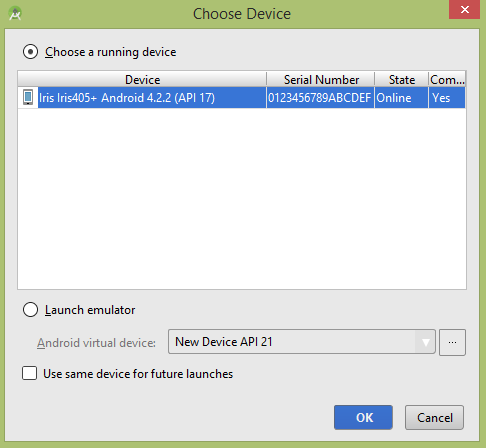
Let's try to run your application. I assume you have connected your actual Android Mobile device with your computer. To run the app from Android studio , open one of your project's activity files and click Run  icon from the tool bar. Before starting your application,Android studio will display following window to select an option where you want to run your Android application.
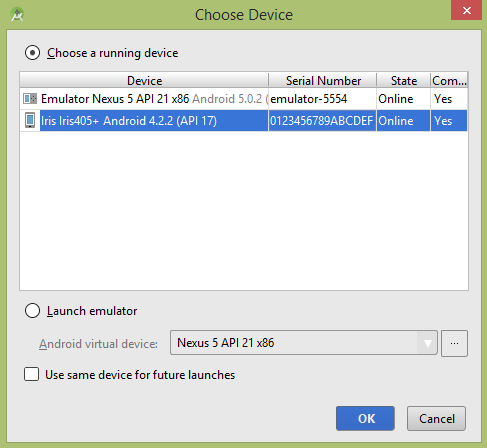
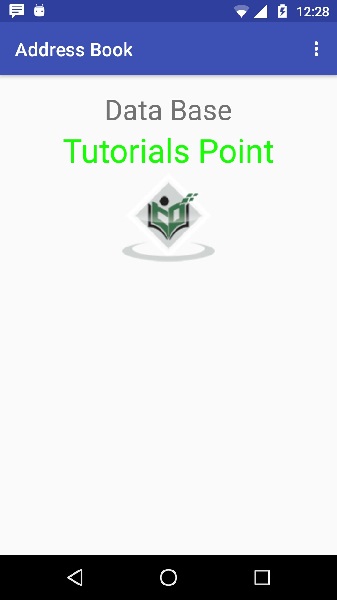
Select your mobile device as an option and then check your mobile device which will display following screen −
Now open your optional menu, it will show as below image: Optional menu appears different places on different versions
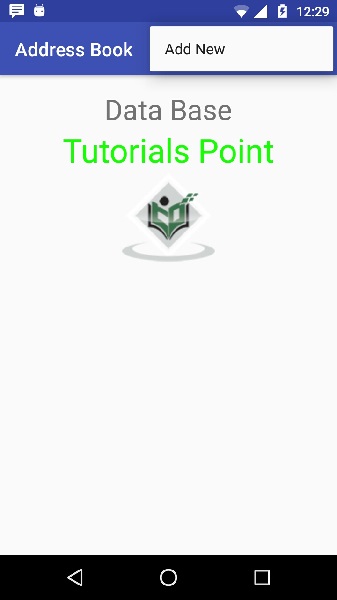
Click on the add button of the menu screen to add a new contact. It will display the following screen −
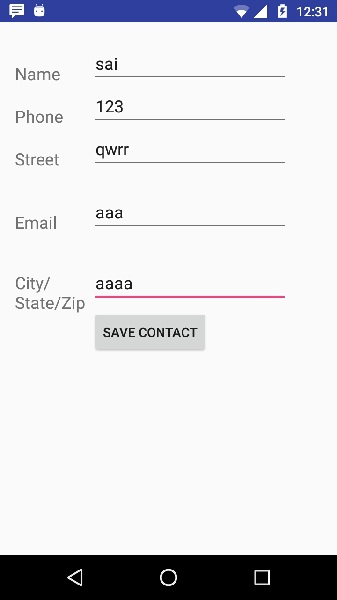
It will display the following fields. Please enter the required information and click on save contact. It will bring you back to main screen.
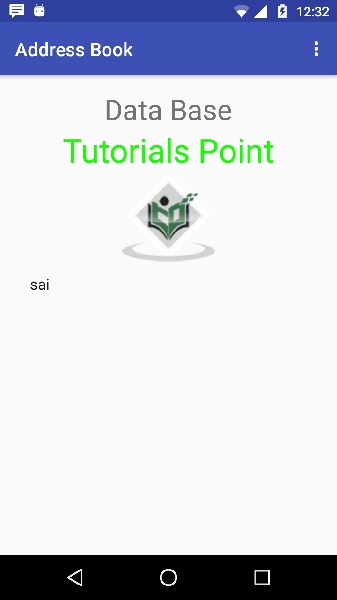
Now our contact sai has been added.In order to see that where is your database is created. Open your android studio, connect your mobile. Go tools/android/android device monitor. Now browse the file explorer tab. Now browse this folder /data/data/<your.package.name>/databases<database-name>.
.png)